For Windows 95 click here to jump ahead.
Go to the C:\ prompt. If your computer goes directly to Windows, exit Windows by selecting Close from the File Menu and answer Yes to exiting Windows.
Type A:GO (or B:GO depending on which disk drive you are using). The software wont load properly if you don't copy it to a diskette and install from off the C drive.
Follow the instructions on the screen. Skip down below to the discussion of PPP and direct dial-in hookups.
Click on the Start button, then on the Run button. Type a:\go.com (if you are using the b drive then you should type b:\go.com). You will need to have the two components (GO.COM and GLNF.EXE) copied to a diskette in order to install the software properly.
The files will extract from the disk onto your hard drive and create a folder on your C drive called glfn. Then you will get an error message. Disregard this message. Click on the Start button again, then on the Run button. Type c:\glnf\setup
The files will extract again. After the files extract, click on the start button and then on run again, and type c:\glfn\setup
You may connect
to the GLFN by dialing directly into the system, or by way of the Internet using a PPP account. First you must set up your software according to the method of connection you choose. To do this click on the
Setup button
at the Login Screen:
At the first Setup Screen, click on the down arrow key where it says
Connect via:
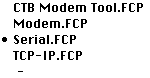
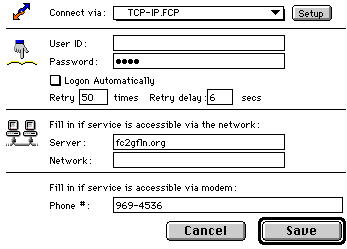
and then select either TCP-IP.FCP to access the system using the Internet using a PPP account:
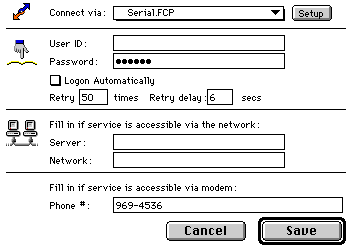
Or Serial.FCP to connect directly to just the GLFN:
If you selected Serial.FCP,
make sure the telephone number appears in the phone number box. For local calls in Battle Creek, Michigan the telephone number is 969-4536. If you have call-waiting telephone service, to shut it off for this call the telephone number you are calling should be preceded by 70 like this: 70,969-4536. In offices where you must dial 9 to get an outside line, the phone number will be 9,969-4536.
Click on the next Setup button, adjacent to the box titled "Connect Via:"
Type the telenet address for the GLFN in the Server box. The Server address is fc2glfn.org.
The telephone number may be listed in the Phone # box, but it will not be used unless you change your method of connection to Serial.FCP.
When you have finished, click on Save. This will send you back to the first Login Screen again.
Click on the Setup button
at the top of the first setup screen. This will bring you to the Protocol Setup Screen, where you will set up your modem if you selected Serial.FCP, or you will set up your network connection if you chose TCP-IP.FCP.
Click on the down arrow key and select your Modem from the list of modems, or you may choose to select the Generic Modem or the Hayes Modem which is highly compatible. Make sure that all your Cable Options
are turned on. Your Baud Rate should match your particular modem. Leave the Auto Speed alone, it is selected automatically according to your modem selection. When you are finished click on the Save button.
Once the Advanced Settings
are opened, increase your TCP Buffer.
30,000 is recommended. Then type in the TCP Port number 3004. Nothing else needs to be checked in this screen. Click on Save
when you are ready to finish.
Back to top of page.
You can use the Tab key or click with your mouse to move from line to line. Once the boxes are all typed in hit the return/enter key or use your mouse to click on the Login button.
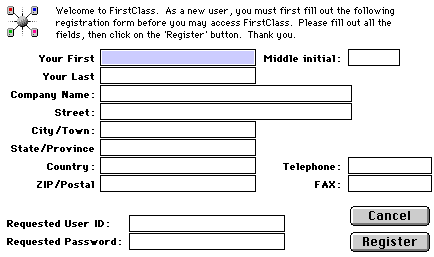
At the next screen, Welcome to FirstClass, fill in all the information. Please include your area code with your phone number. You can leave the Fax number box empty, but be sure to fill in all the other boxes. We must have your complete address and your telephone to process your application.
This will be your only chance to make any changes to your User ID and Password. You will have approximately four minutes to type in this information. If the system logs you off before you complete the registration form you will simply have to start the registration process all over again.
If someone has already chosen a login name exactly like yours the system will allow you to choose another name. If the name you chose is not already in use the system can continue with the registration process.
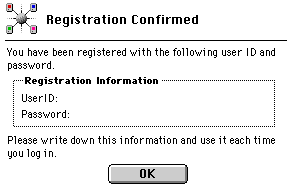
The next screen, Registration Confirmed, will contain your User ID and Password. Use your mouse to click on OK or simply press the return/enter key.
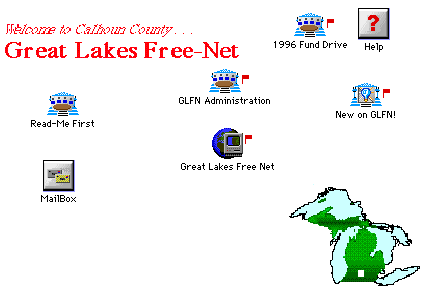
You can access your private email by clicking on the "Mailbox" icon
You can learn more about the system by clicking on the "GLFN Administration" icon.
But most importantly: You can learn everything you need to know about using GLFN by clicking on the "Help" icon.
Back to the top
Fill out the paper registration form and turn it in to the Media Services Desk at Willard Library in Battle Creek, Michigan. Be prepared to show identification. If you have no identification the process will be much slower.
Until you have completed the paper registration process, every time that you try and access any one of these icons (conferences and sub-conferences) by double-clicking on them you will get an error message:
After the time elapses you will have complete access to all of the conferences and resources available on GLFN.
Thanks for using the Great Lakes Free Net!
After you are registered, you will have full access to the various conferences and sub-conferences available on the GLFN.
Back to the top
You should start by reading each of the messages posted in the Help conference. A conference
on GLFN is a group of people communicating asynchroniously by reading and posting messages pertaining to a particular topic. The best example is the Help conference, represented by the Help Icon.
To open a message use your mouse to point anywhere along the message line. Then click your mouse button twice, rapidly. The message will then open so that you can read it, save it and look at it later, you can even lift quotes from it, or you can print it out. When you are finished with the message click in the small box in the upper left hand corner of the window and click, which closes the window. To respond to the conference's topic yourself you can leave your own messages.
If you have a question regarding the use of the GLFN, leave a message in the "Help Desk" sub-conference. There are different sub-conferences for different questions and issues, feel free to explore anything that interests you, and join in conferences or sub-conferences that you are curious about.
Often on the web there are lists of frequently asked questions, which are also answered. These documents, FAQ documents, are very helpful and can address any topic. On GLFN you can join in any conferences.
The Great Lakes Free-Net is an electronic, community information system dedicated to sharing the power of knowledge by providing quality information through interactive technology. GLFN assists people, organizations and businesses in disseminating and gathering information via a totally inclusive, electronic community information system, as well as, to promote connectivity between newly developing information systems.
For more information please call the
(616) 968-8166
(616) 969-4536
fax
(616) 968-3284
or E-mail: laura_depompolo@glfn.org
The
GLFN dial-in number is:
(616) 969-4536
Thank you for using Great Lakes Free Net!
How to set up FirstClass for Windows
These are instructions for connecting to GLFN using FirstClass, for Windows 3.1, DOS, and Windows 95. There are two parts, installing the software and configuring it for use, either by directly dialing into the system or by using your PPP internet connection.
For now, you must get the First Class software from a friend, or from the
Willard Library.
Later, you may obtain the software by downloading it directly.
You will need to place the folder's two components (GO.COM and GLFN.EXE) on a diskette to perform the installation.
For Windows 3.1 or DOS:
For Windows 95:

If you selected TCP-IP.FCP:
For Direct Dial-in Access using Serial.FCP:
For Internet Access using TCP-IP.FCP:
Click on the side arrow Advanced Settings
which brings up a list of options.

How to Register an account with GLFN
These are instructions for creating your own User ID and Password. They can be whatever you choose, we recommend using a short version of your name to make it easy to remember. Use an underline to separate first and last name, like this: Firstname_Lastname. If someone else has chosen the same short version before you, you will have to vary your login name slightly.
Welcome to Great Lakes Free-Net!
This next screen is your Desktop.
Finishing the Registration Process
You have now finished the online registration process. However, you only have Autoregistered User status. This means that you only have limited access to the system until the full registration is complete. You must now complete the paper registration process, including mailing or bringing in the forms again and allowing time for GLFN Volunteers to process your application, and obtain the software. This should take approximately three weeks.
Additional Information and Help
There is no printed information on how to use GLFN. There are, however, extensive online instructions. As improvements are made these instructions will be updated, this saves much paper.
Willard Library
(corner of Capital & Van Buren)
7 W Van Buren
Battle Creek, MI 49017
Back to the top of this page.
Back to the Great Lakes Free Net Home Page.
Back to the Battle Creek Home Page.
This page was last updated 7-1-96. Albion Design.
Send mail pertaining to these pages to mlanoue@albionmich.com
With thanks to Robin James.